As part of a domain profile, we need to configure the ports for the fabric interconnects. This policy can be created before or during the Domain Profile configuration wizard.
When you reach section 4 of the UCS Domain Profile configuration page, you will need to specify a port policy, the screen below is an example of when you will be asked to specify the policy during that wizard:
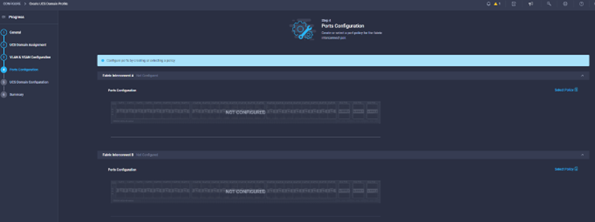
When you click on the ‘Select Policy’ button, a blade will open from the right which allows you to select an existing policy, or, ‘create new’. The following steps describe how to create a Port-Policy.
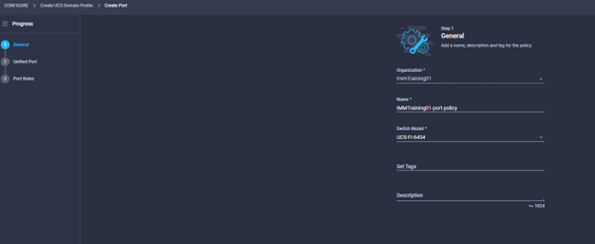
- When you click the ‘create new’ button for the port-policy, the wizard will open and you will be asked to provide a name, a model for the FI (called a switch in the GUI), include some tags if required, and a description:
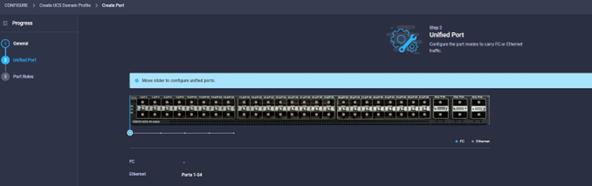
- Click next and you will be asked to define which of the ports will be used as Unified Ports, you should be able to drag the blue dot to pick which quads should be configured as ‘Unified’, or none if there is no requirement for unified port connectivity.
- Once the unified ports have been selected, click next and you will be taken to the Ethernet Port role configuration where we specify ports used for Servers, Appliances, Uplinks, Port-channels etc:
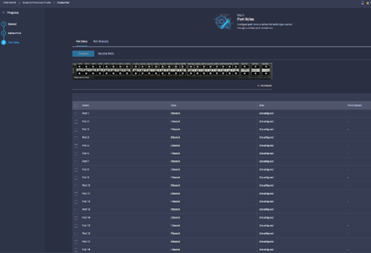
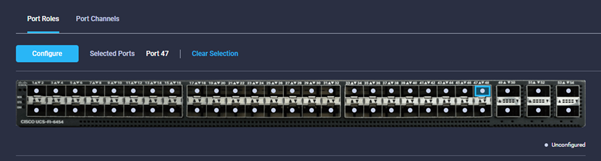
- Select the ports either on the Graphic, or on the list at the bottom, then click configure as per the image below:
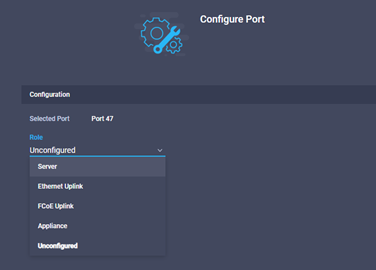
- When you click the configure button, another window will open and a dropdown box will provide the possible configuration options, this example is a server port where can connect Servers or Blade Chassis:
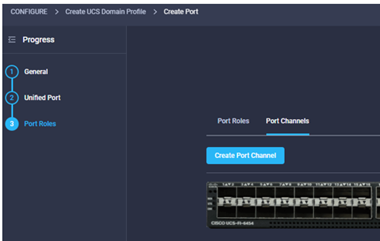
- Once you have configured the port or groups of ports, you will probably need to configure a port-channel. Select the port-channel tab, then click create port channel:
- Select the type of port-channel required as per the drop down box highlighted below:
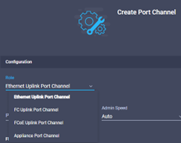
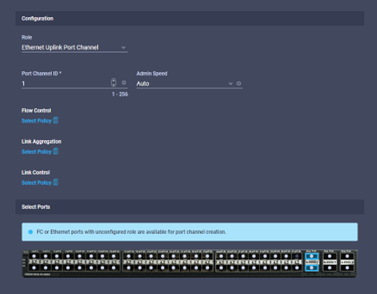
- In our example we are creating an Ethernet Uplink Port-channel, an LACP uplink to the Lab Core network. Select the Port-Channel ID and select the appropriate port administrative speed, or auto. Policies for Flow Control, Link Aggregation and Link Control are optional, the defaults will be taken which is normally the required settings for LACP port-channels. Once completed, click next:
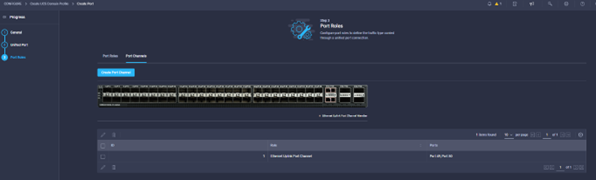
- Back in the port-channels tab, the view should look something like the below, once you have reviewed the configuration, click save:
 Secret IT Engineer
Leave a comment